How to apply a discount code at checkout
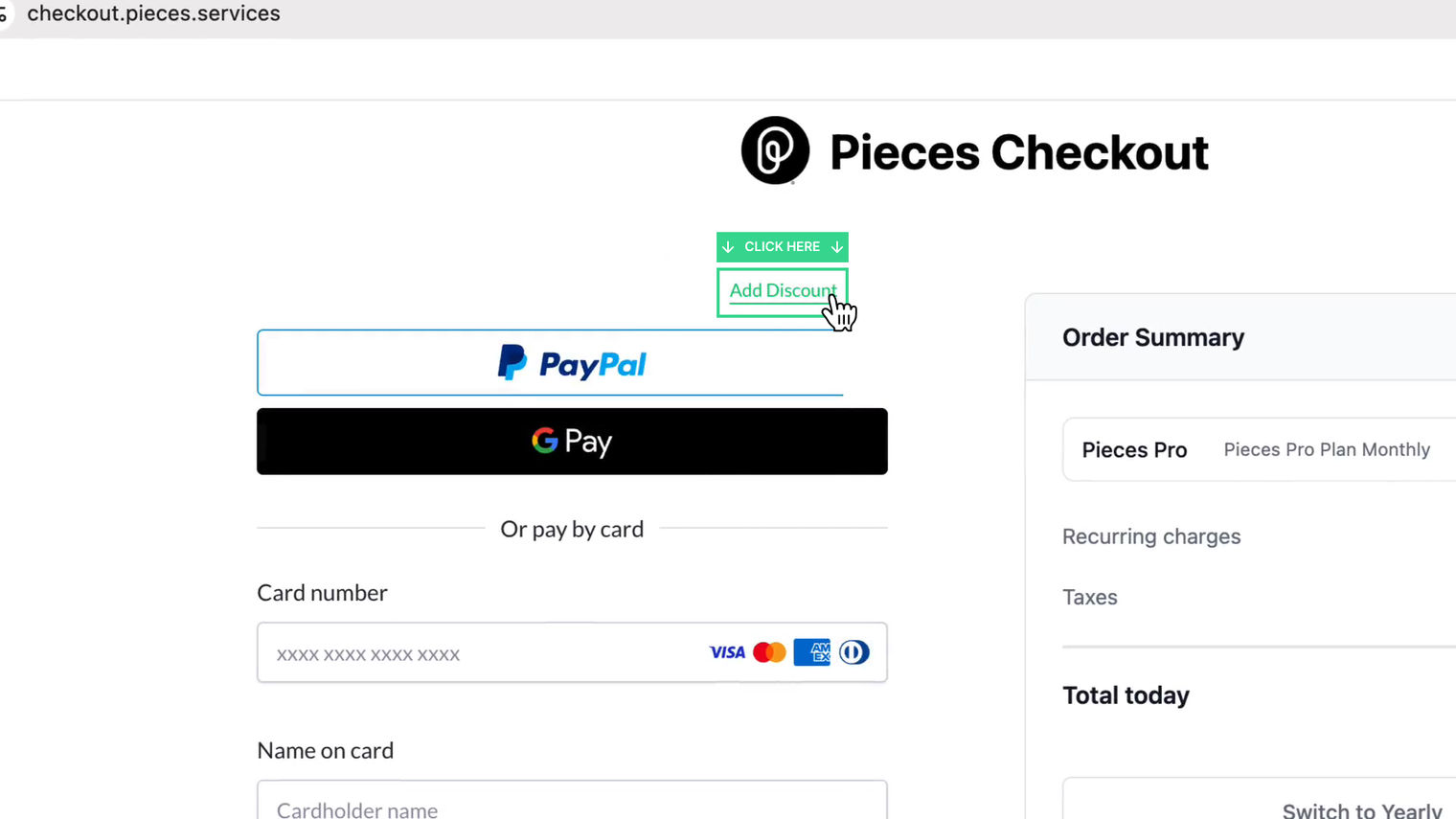
Apply your discount code before you pay — Add discount sits above the card fields and is easy to miss.
Where it is
On the payment step, the Add discount button sits above the payment methods. Click it to reveal the code field.
Before you start
You’ll need a valid discount code and a signed-in Pieces account.
How to apply it
- In Pieces Desktop, click Upgrade. Checkout opens in your browser.
- Fill in your details on the first screen, then continue to payment.
- Click Add discount above the card fields.
- Enter your code and apply it. The order total should update immediately — confirm the new amount before you continue.
- Enter your payment details and finish checkout.
Troubleshooting
Code rejected?
Double-check the spelling and capitalization — most codes are case-sensitive — and confirm it hasn’t expired.
Total didn’t change?
Make sure you clicked to apply the code after typing it; it won’t apply on its own. Refresh and try once more, or contact support if it still fails.
Already on a paid plan?
Contact support to apply the code to your existing subscription.
Still need a hand?
Browse FAQs or submit a request — we’ll help you get the code applied.
Found a bug?
Something off in checkout? Open a GitHub issue and we’ll take a look.